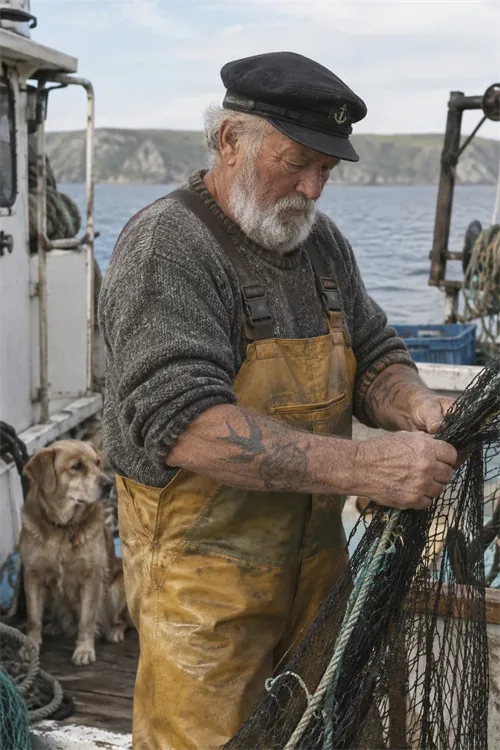
Photorealism · GPT IMAGE 2.5 SUNBURST
Create and edit images with GPT Image 2.5 using text or reference photos. Choose your model, image quality, size, and background.
Browse GPT Image 2.5 examples across photorealism, product design, advertising, UI concepts, logos, comics, and educational graphics.
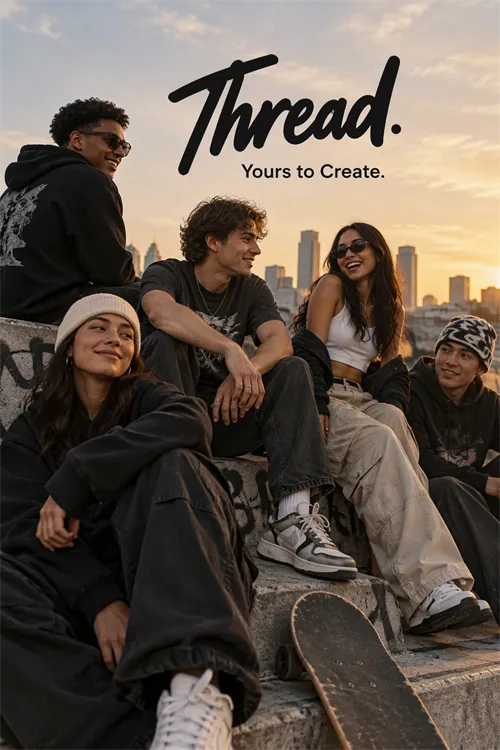
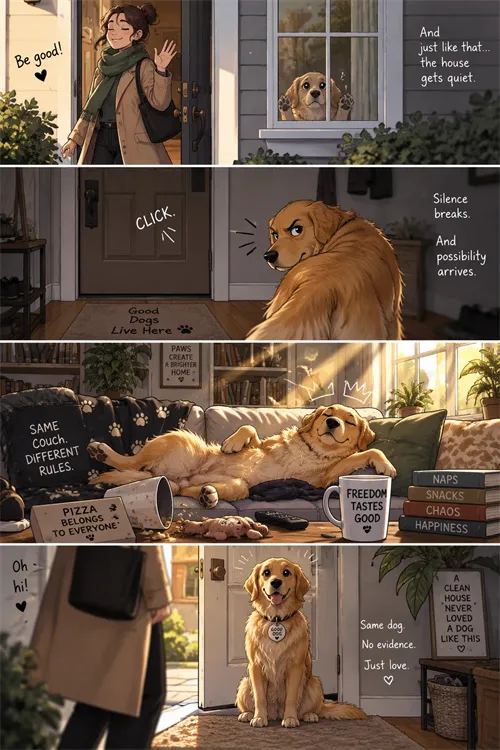
Learn how OpenAI’s GPT Image 2.5 model turns text prompts and reference images into detailed visuals while supporting precise image editing.
GPT Image 2.5 is an image generation and editing model family from OpenAI.
It can create new images from text and work with uploaded images for editing and reference-based generation.
GPT Image 2.5 improves image detail, reference handling, and focused editing. It also produces more natural lighting and textures than the previous generation.
A faster option for everyday image generation.
An option focused more on image quality and detailed edits.
GPT Image 2.5 improves image creation and editing with sharper details, stronger reference handling, more focused edits, and better control over complex visual requests.
GPT Image 2.5 Flare is optimized for faster everyday image generation. It is a good choice when you want to explore ideas and create multiple variations quickly.
Make focused changes to existing images while giving clear instructions about what should change and what should stay the same. This is useful for changing clothing, objects, colors, backgrounds, and other specific parts of an image.
Use reference photos to guide people, products, clothing, composition, and other visual details. GPT Image 2.5 is designed to follow reference images more closely, helping results stay more consistent with the source material.
Create images with improved detail, lighting, textures, and overall visual quality. This can help with product photos, portraits, marketing graphics, illustrations, and other image-heavy projects.
Describe several visual requirements in one prompt, including the subject, layout, style, lighting, text, and other details. Clear instructions help the model understand how different parts of the image should work together.
Create images with transparent backgrounds for product cutouts, icons, stickers, website graphics, and other design assets.
Explore text-to-image generation, reference-based creation, image editing, typography, and transparent backgrounds in one AI image generator.
Describe the subject, setting, style, lighting, and other details you want.
Use it for:
Upload an image and describe the change you want.
You can ask the model to change:
You can also tell it which parts should stay the same.
Change the blue shirt to a black jacket. Keep the face, hairstyle, pose, background, and lighting the same.
Generated edits can still change small details. Review the final result before using it.
Upload a reference image to give the model more visual context.
Reference images can help guide:
Be clear about what the reference image should control.
Use the person in the uploaded image as the subject. Keep the face and hairstyle close to the reference. Change the clothing to a dark green jacket and place the subject in a modern studio.
Use GPT Image 2.5 to create posters, ads, product graphics, and other images that include text.
For better results:
Create a minimalist coffee poster. Add "START SLOW" once at the top in large black text. Do not add any other words.
Always review spelling and readability before publishing.
Generate images with transparent backgrounds for design and product work.
Transparent backgrounds are useful for:
Create a simple coffee cup icon on a transparent background. Keep the object centered. Do not add scenery or a solid background.
Follow four simple steps to turn a text prompt or reference photo into a polished AI-generated image with the right model and settings.
Select Flare for faster everyday creation or Sunburst for higher-quality generation and detailed edits. Then choose whether to create a new image or edit an existing one.
Describe the subject, composition, style, lighting, text, and constraints that matter most. For edits, state what should change and what should stay the same.
Upload an optional reference image, then choose the image quality, size, and background. Review the displayed credit cost before continuing.
Generate the image and inspect the result. Refine one instruction at a time, then generate another version when needed.
Learn how to write effective AI image prompts with clear subjects, composition, lighting, style, text, and editing instructions.
A good prompt usually includes:
Create a premium perfume ad with a clear glass bottle on beige stone. Use soft afternoon light and realistic reflections. Add “Quiet Luxury” once at the top. Do not add other text.
For more examples and advanced techniques, explore the full prompt guide.
Discover practical ways to use GPT Image 2.5 for product photography, marketing graphics, social content, design concepts, and visual learning.
Create studio scenes, product concepts, packaging ideas, and background variations.
Create posters, ad concepts, campaign visuals, and promotional graphics.
Create post graphics, covers, announcements, and visual ideas.
Change clothing, backgrounds, colors, and styles using an existing photo as a reference.
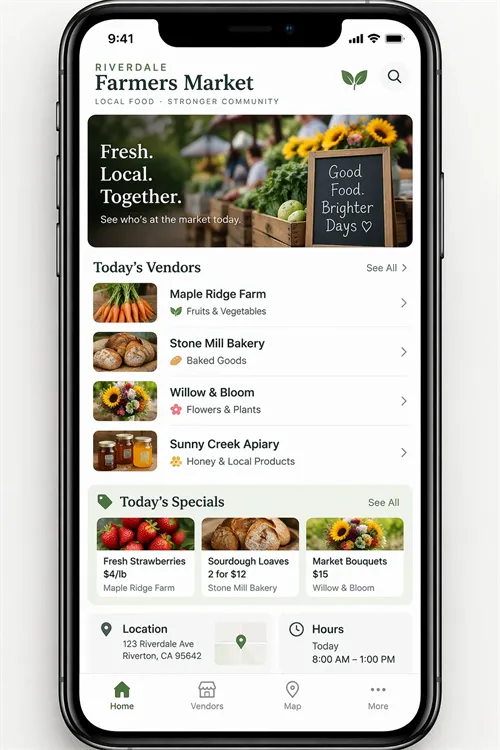
Explore website layouts, app interfaces, presentation graphics, and visual concepts.
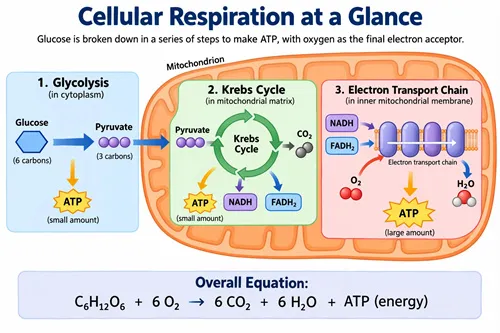
Create diagrams, visual explanations, and infographic ideas. Review factual information and generated text before publishing.
Find clear answers about GPT Image 2.5 generation, image editing, reference photos, supported sizes, transparent backgrounds, and credits.
GPT Image 2.5 is an image generation and editing model family from OpenAI. It can create images from text and work with uploaded images for editing and reference-based generation.
Yes. Enter a prompt that describes the image you want to create.
Yes. Upload an image and describe what you want to change. You can also tell the model which parts should stay the same.
Yes. Reference images can guide the subject, style, product, clothing, background, and other visual details.
Yes. You can ask it to add headlines, labels, and other short text. Always review spelling and readability before publishing.
Yes. Transparent backgrounds can be used for products, icons, stickers, and other design assets.
GPT Image 2.5 supports common square, portrait, landscape, 2K, and 4K sizes. The sizes available on this website depend on the generator settings.
The model supports common 4K sizes such as 3840 × 2160 and 2160 × 3840. Availability depends on the options offered in the generator.
Flare is built for faster everyday generation. Sunburst focuses more on image quality and detailed edits.
New users receive 5 free credits after signing up.
Low uses 2 credits, Medium uses 5, High uses 13, XHigh uses 25, Max uses 50, and Auto uses 25 credits per image.
Yes. Five credits are enough for one Medium-quality image or up to two Low-quality images.
No. Both models currently use the same credit amounts on this website.
No. This is an independent third-party AI image generation service. It is not affiliated with or endorsed by OpenAI. --- # Create Your Next Image with GPT Image 2.5 Start with a prompt or reference image. Choose your settings and create your first image with 5 signup credits. **Primary CTA:** Generate Image **Secondary CTA:** Get 5 Free Credits
Bring your next visual idea to life with GPT Image 2.5 using a clear prompt, an optional reference image, and flexible generation settings.